Guides

How to use FreshTrack

Short step-by-step guides. Most take less than a minute.

Getting started

Free

Add your first item

  1. On Inventory, tap Add item.
  2. Type a name. FreshTrack picks the category for you.
  3. Choose Fridge, Freezer or Pantry and set the quantity.
  4. Pick an expiry date, such as 3 days, 1 week or your own date.
  5. Tap Add to Fridge (or Freezer or Pantry).

Adding a lot? Tap Save & add more to go straight to the next item.
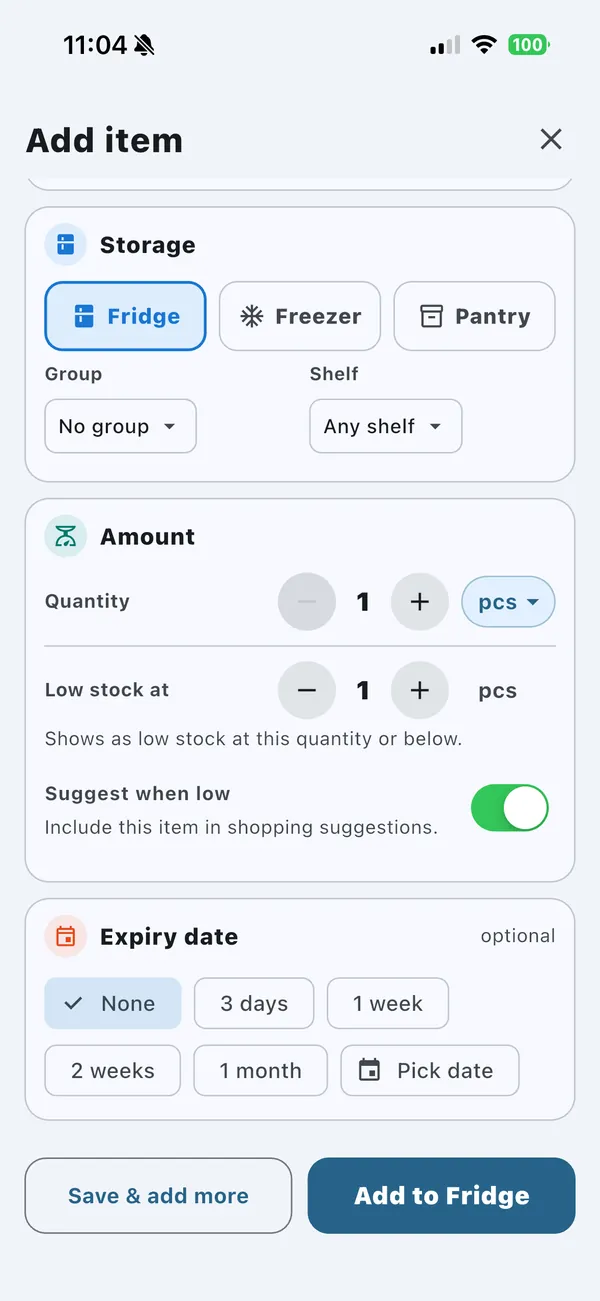
Add item screen
Free

Use, restock and see what needs attention

  1. Tap − on an item when you use some, and + when you buy more.
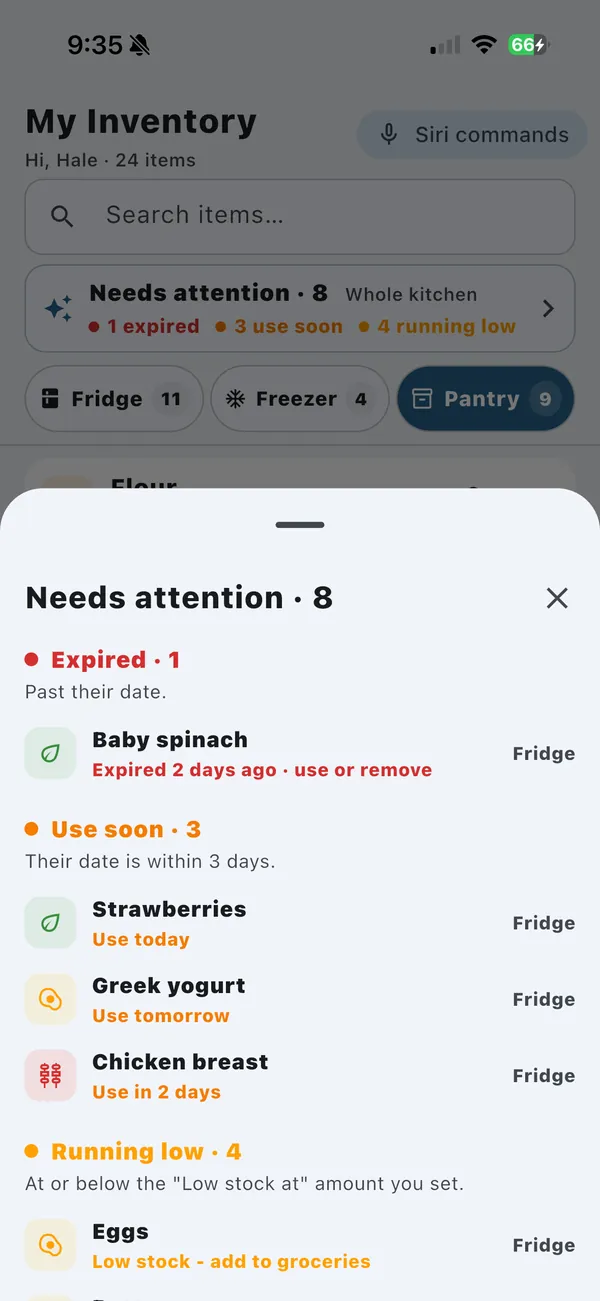
  2. Open Needs attention at the top of Inventory to see what has expired, what to use soon and what is running low.
  3. To be warned before something runs out, set Low stock at when you add or edit the item.

An item that runs out stays in your list at zero, ready to restock.

Needs attention list
Free

Turn on reminders

  1. Open Settings and find Reminders.
  2. Turn on Expiry reminders and Low stock reminders.
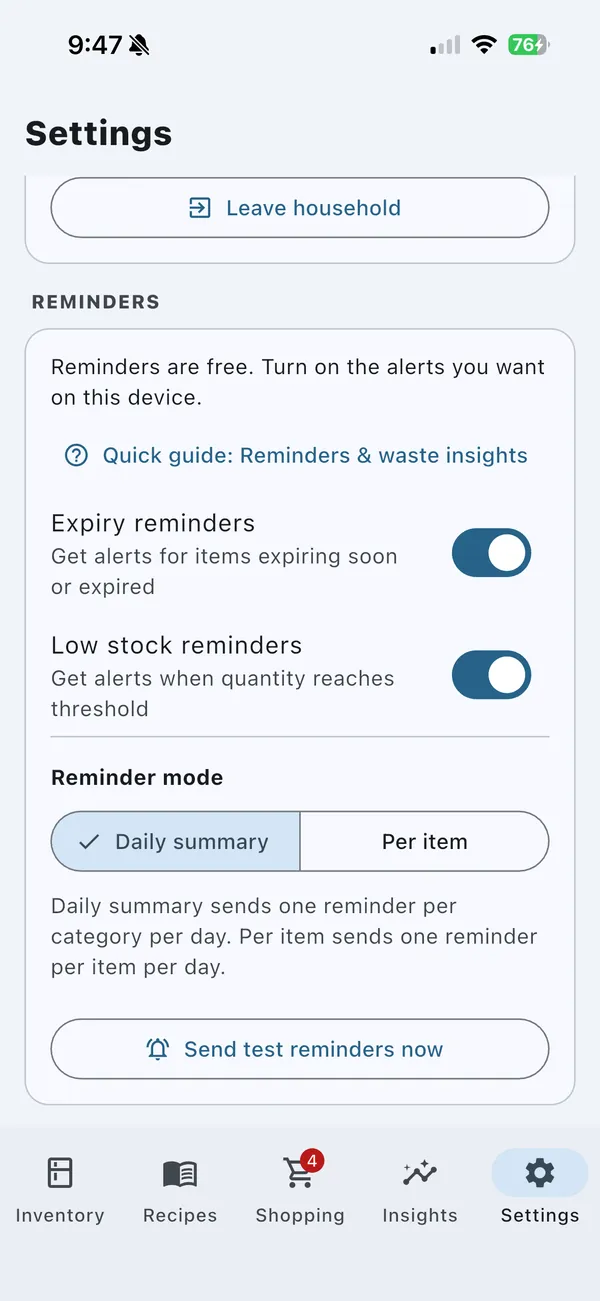
  3. Under Reminder mode, choose Daily summary (one reminder per category a day) or Per item.
  4. Allow notifications when your phone asks.

Tap Send test reminders now to check that reminders arrive.

Reminder settings

Shopping

Free

Build your shopping list

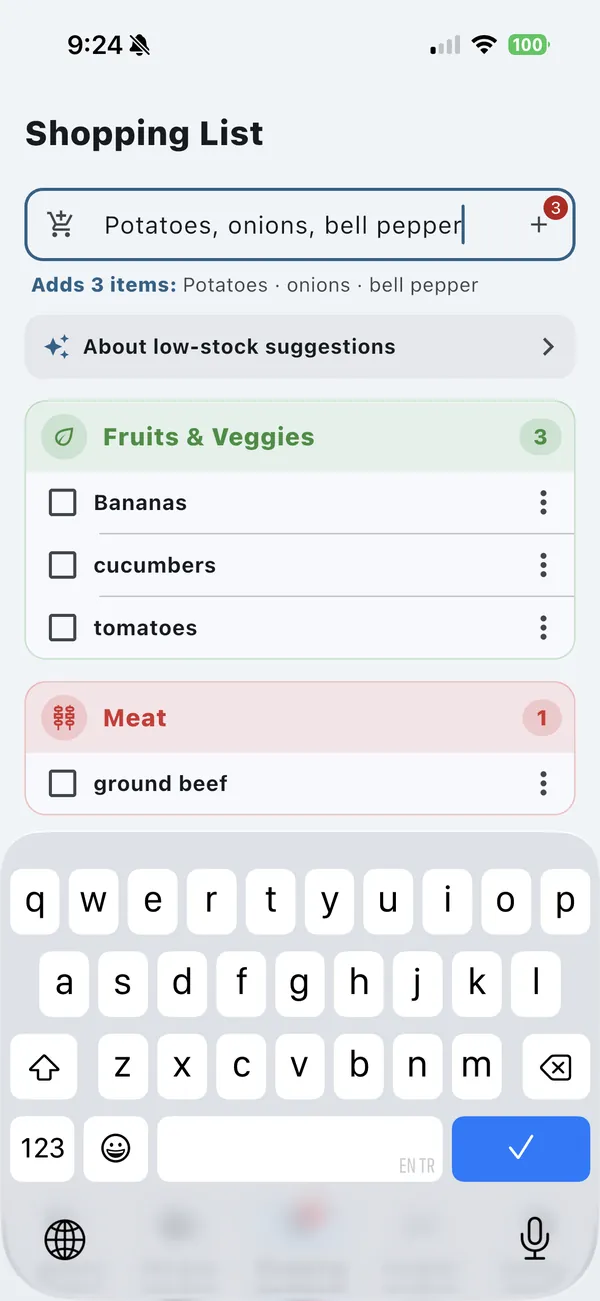
  1. Open Shopping and type in the add field. Add several items at once with commas: milk, eggs, bread.
  2. Items are grouped by aisle automatically.
  3. Tick items as you buy them.
  4. Tap Add to inventory to put what you bought straight into your kitchen.

With Pro, items running low appear under Suggested. Add only the ones you want.

Adding three shopping items at once, separated by commas

Recipes

FreeSign-in

Import from text, screenshots or a cookbook

  1. Open Recipes and tap +.
  2. Paste the recipe text, tap Choose screenshots, or tap Scan a recipe page.
  3. Scanning? Lay the page flat in good light. Check the reading order and result before saving.
  4. For screenshots, check and adjust their reading order before reading them. Review the result, reorder cooking steps if needed, then tap Save recipe.
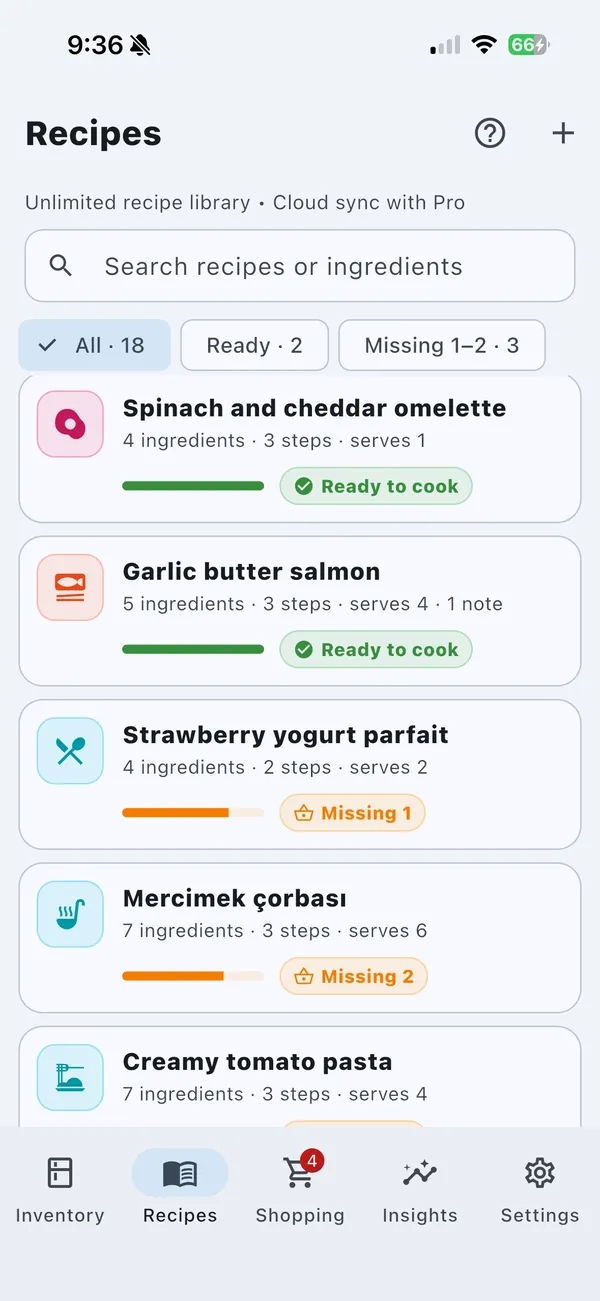
Imported recipe with ingredients matched to your kitchen
Free

Send missing ingredients to your list

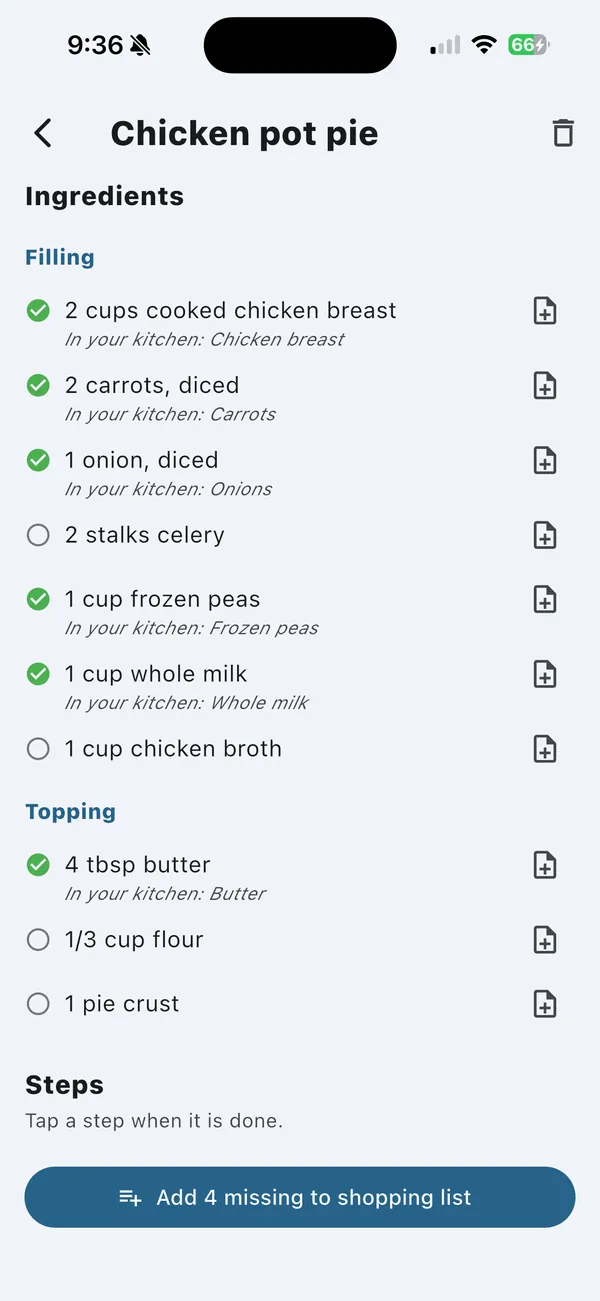
  1. Open a saved recipe. Ingredients you already have show In your kitchen.
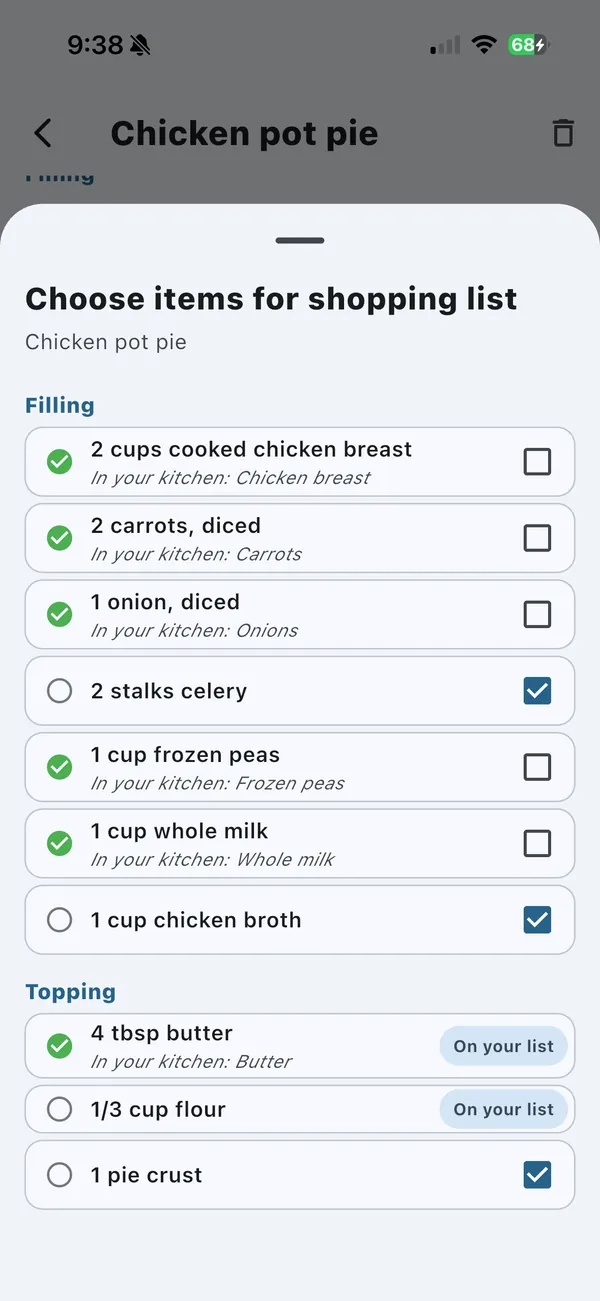
  2. Tap Add … missing to shopping list, or tap Choose items for shopping list to pick exactly what to buy.
  3. Items already on your list are marked On your list, so nothing is added twice.
Choosing recipe ingredients to add to the shopping list

Household

Pro

Share your kitchen

  1. Open Settings and scroll to Household.
  2. Tap Create new.
  3. Tap Copy invite code and send it to the people you live with.
  4. Up to five people can join. They share inventory and shopping. Saved recipes stay private, and features such as barcode scanning need their own Pro subscription.

Invite codes expire after 7 days. You can replace a code at any time.

FreeSign-in

Join a household

  1. Sign in with your own account in Settings.
  2. Under Household, enter the code in Join with invite code.
  3. Tap Join and confirm.

Your personal lists are saved on this phone while you share the household. Tap Leave household to restore that local copy; it is not a separate cloud backup.

Groups, insights & Siri

Pro

Create your own groups

  1. On Inventory, choose Fridge, Freezer or Pantry.
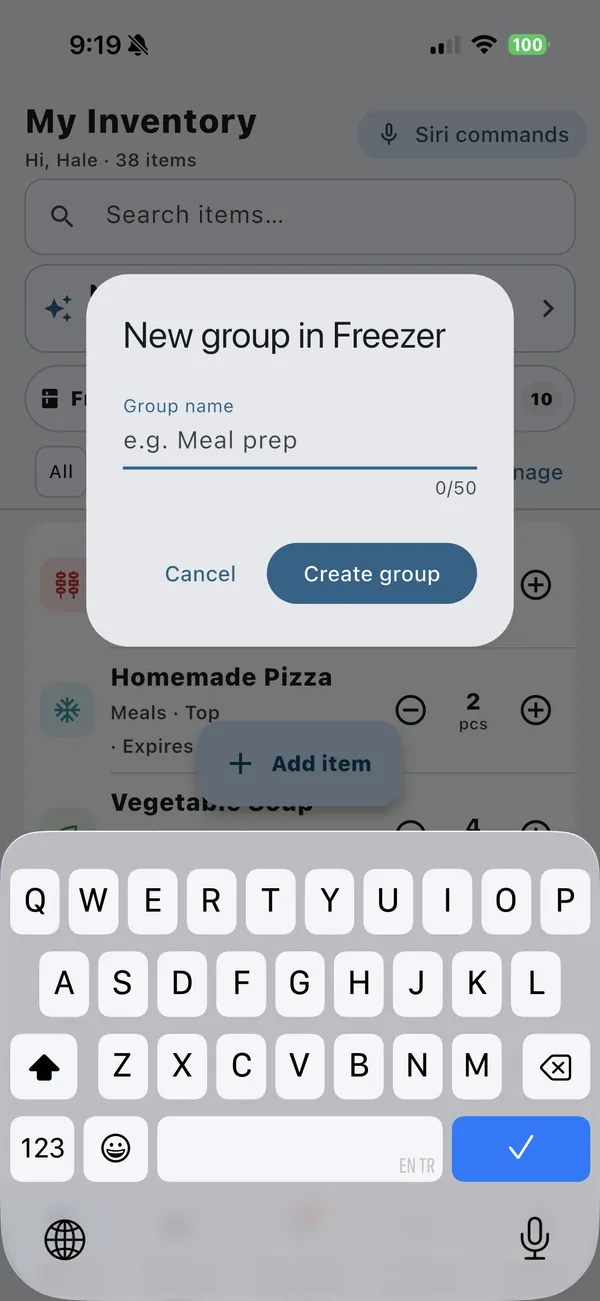
  2. Tap + Group, type a name like Meal prep, then tap Create group.
  3. Choose the group when you add or edit an item.
  4. Tap a group to show only its items. Use Manage to rename or delete groups.

Deleting a group keeps its items.

New group dialog
Free

Check items with Kitchen Insights

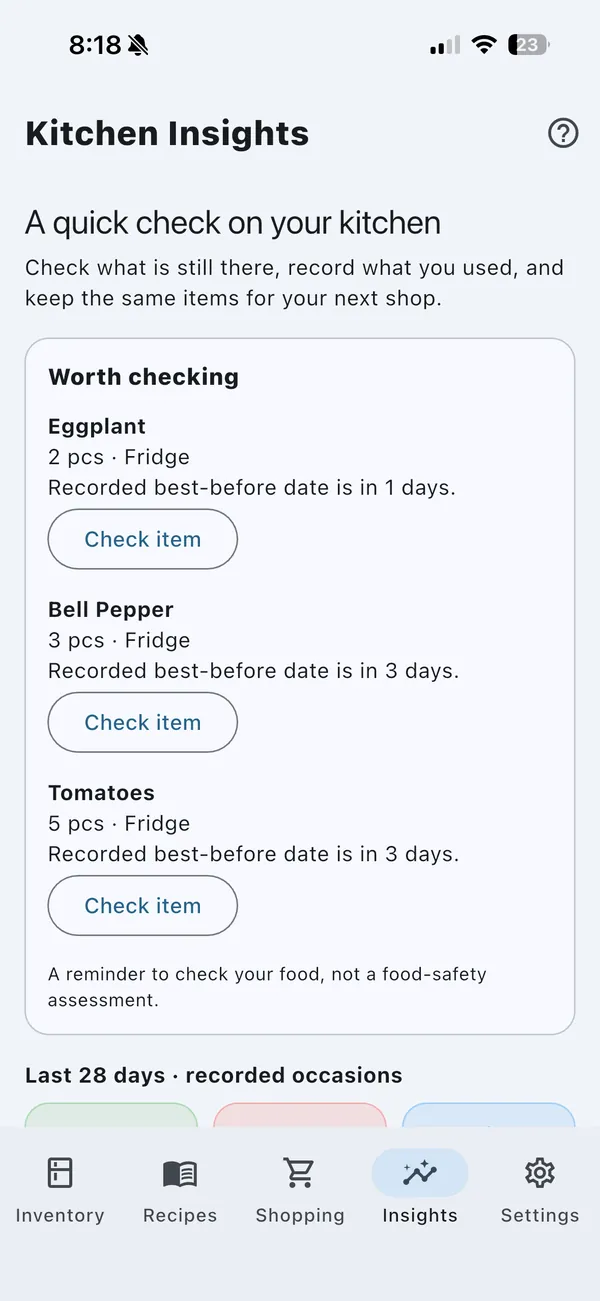
  1. Open Insights. Up to three items are listed under Worth checking.
  2. Tap Check item and choose what happened, such as Used some / used it up or Still have it.
  3. Scroll down to see what you used, restocked and threw away in the last 4 weeks.

Deleting an item never counts as waste.

Kitchen Insights Worth checking list
iPhoneSign-in

Update your inventory with Siri

  1. Sign in to FreshTrack.
  2. Say “Use Milk in FreshTrack” or “Restock Milk in FreshTrack”.
  3. For another amount, say “Log use in FreshTrack” and answer, for example, “Two eggs”.
  4. Tap Siri commands on Inventory to see every phrase.

Needs iOS 16 or later. 5 commands are free; Pro unlocks unlimited commands.

Still need help?

Read the FAQ, visit Support, or email bilalmanisa@gmail.com.

Get FreshTrack

Free inventory tracking on iPhone, iPad and Android.

Download on the App Store Get it on Google Play

No account needed to start. Optional Pro subscription.